forSheets (and giggles)
Setlist converter for forScore (.4ss) and MobileSheets (.mss).
Convert a forScore setlist to MobileSheets (.4ss → .mss)
Tested path: forScore 14 on iPad or MacOS → forSheets in a desktop browser → MobileSheets on Android tablet. Your files never leave your browser; conversion happens in memory.
1. Share the setlist out of forScore — with scores
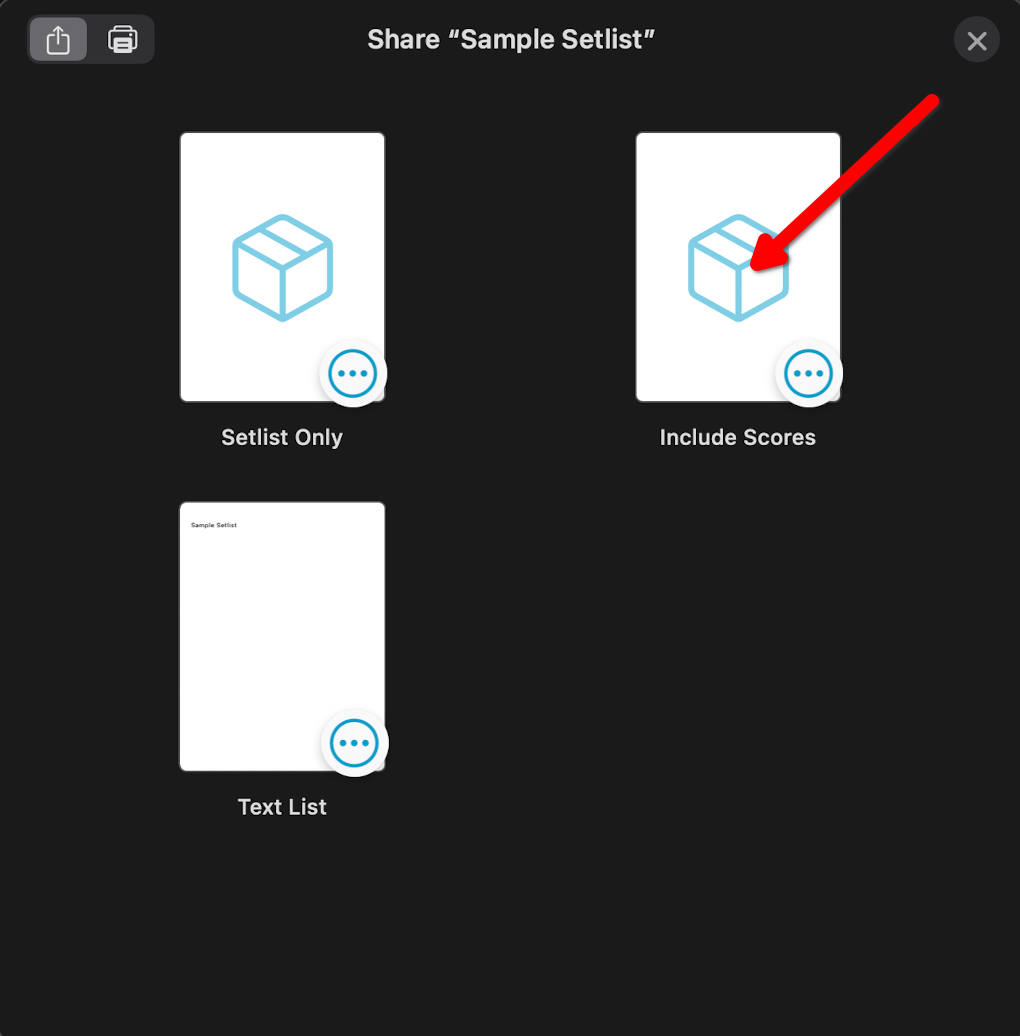
Open the list of setlists in forScore (not the contents of one setlist), share the setlist, and choose Include Scores. That option packs each song's PDF into the .4ss file itself. If you pick Setlist Only, the .4ss carries titles and filenames but no PDF data — the conversion still works, but MobileSheets will have nothing to import except names, and every entry lands reference-only. forScore documents the share flow here: how to share a forScore setlist.
2. Convert the .4ss on the converter page
Open the converter, drop the .4ss file in, and press Convert. Leave Bundle PDFs + import guide (.zip) checked — an .mss file stores titles and filenames only, no PDF data, so the bundle (converted .mss + Scores/*.pdf + IMPORT_ME.txt) is what actually carries your music across. Uncheck it only if MobileSheets already has these exact PDFs, or if the .4ss had none embedded to pack. Individual PDFs also appear as separate downloads in a collapsed section; the match report lists every entry as embedded, reference-only, or skipped before you import anything.
3. Import into MobileSheets — two imports, in order
- Transfer and unzip the bundle onto the tablet.
- Import the PDFs first: library screen → import (+) → Batch Import → select the extracted
Scores/folder, set Title to "Use Filename as Title", then start. Every PDF becomes a song named after its file. - Import the setlist second: import (+) → Local File → select
<setlist>.mss. MobileSheets creates the setlist and matches each song by title (use the setlist editor to re-point anything unmatched).
Shortcut: during Batch Import you can type the setlist name into the "Setlists" field to create the setlist in the same import — titles then come from PDF filenames and the .mss is unnecessary.
What crosses over — and what doesn't
- Scores become MobileSheets songs titled from their file names (MobileSheets matches by title, so titles are aligned to the imported PDF names).
- Bookmarks map to the full parent PDF, not the bookmarked pages. Use the Bookmarks: suffixed option to append " (bookmark)" to the title so the loss is visible.
- Placeholders have no MobileSheets equivalent: skipped by default (listed in the bundle guide) or kept as Blank songs (FileType 5) with Placeholders: blank.
- Native vs XML .4ss: both convert transparently. Native files (forScore 12+, gzip/binary plist) store no setlist name, so the converted
.msstakes the source file's name.
Stuck? See Troubleshooting or write to help@forsheets.app with the warning text from the converter.
Convert a MobileSheets setlist to forScore (.mss → .4ss)
The reverse trip is PDF-dependent: an .mss file lists songs only, so you supply the PDFs and forSheets embeds them into the .4ss. Everything still converts locally in your browser.
1. Get the setlist out of MobileSheets — not the songs
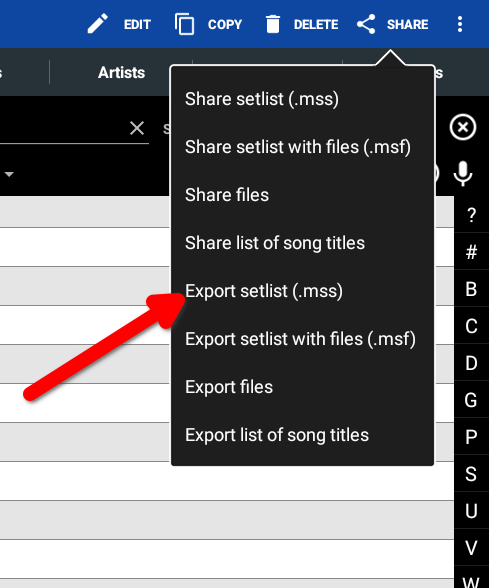
On the Setlists tab, long-press the setlist and choose Export setlist (.mss), saving it to device storage. That produces the small .mss XML file forSheets needs. Do not use "Export songs" or "Share songs and files" — those make a proprietary .msf bundle (or a full .msb backup), which neither forSheets nor forScore can read; the converter rejects them with an explanation. Video reference (demonstrates the older Share path, still valid): sharing a MobileSheets setlist.
Share or Export — which one? They create the identical .mss file; only the delivery differs. Export saves to this device's storage — pick it when the browser you'll convert in is on the same tablet. Share hands the file to another app (mail, Drive, Bluetooth) — pick it when you're converting on a different device and need to send the file to yourself. (On older versions the Share option is called Share song list.)
2. Gather the song PDFs
Collect the setlist's PDFs — the same files MobileSheets imported as songs. Pull them from the same menu via Export files (same device) or Share files (another device). Names matter: matching is by filename (case-insensitive), so Big Scioti (arr01 Tull).pdf in the .mss must meet the same filename on disk. Non-PDF material (images, text, ChordPro) can be attached too: it won't embed, but the match report marks it as supplied so you know what still needs importing separately.
3. Convert .mss + PDFs together
On the converter, drop the .mss plus its .pdf files and press Convert. Matching PDFs are embedded into the output .4ss as data= payloads; entries without a matching PDF are still written but reference the filename only, and forScore will match them against PDFs already in (or separately imported into) its library. The match report shows per-entry status — embedded, reference-only, skipped — plus unmatched PDFs, so missing files are visible before you import. A songids.json sidecar download appears when the setlist carries SongIds.
4. Import the .4ss into forScore
Transfer the converted .4ss to the iPad and import it. forScore matches path/title against its library (exact, then case-insensitive, then diacritics-insensitive), so a fully-matched file just works; reference-only entries resolve once you import those PDFs into forScore separately.
Do you need the .zip bundle?
Usually not for this direction: the .4ss already carries matched PDFs inside. The bundle box stays unchecked by default here for that reason. Take the .zip (.4ss + Scores/ + Media/ + songids.json + FORSCORE_IMPORT_ME.txt) when you have reference-only entries, non-PDF media, SongIds to preserve, or a multi-setlist batch — belt and braces for older forScore versions and split libraries.
Errors? See Troubleshooting, or mail the warning text (not your PDFs) to help@forsheets.app.